
Right rail buttons
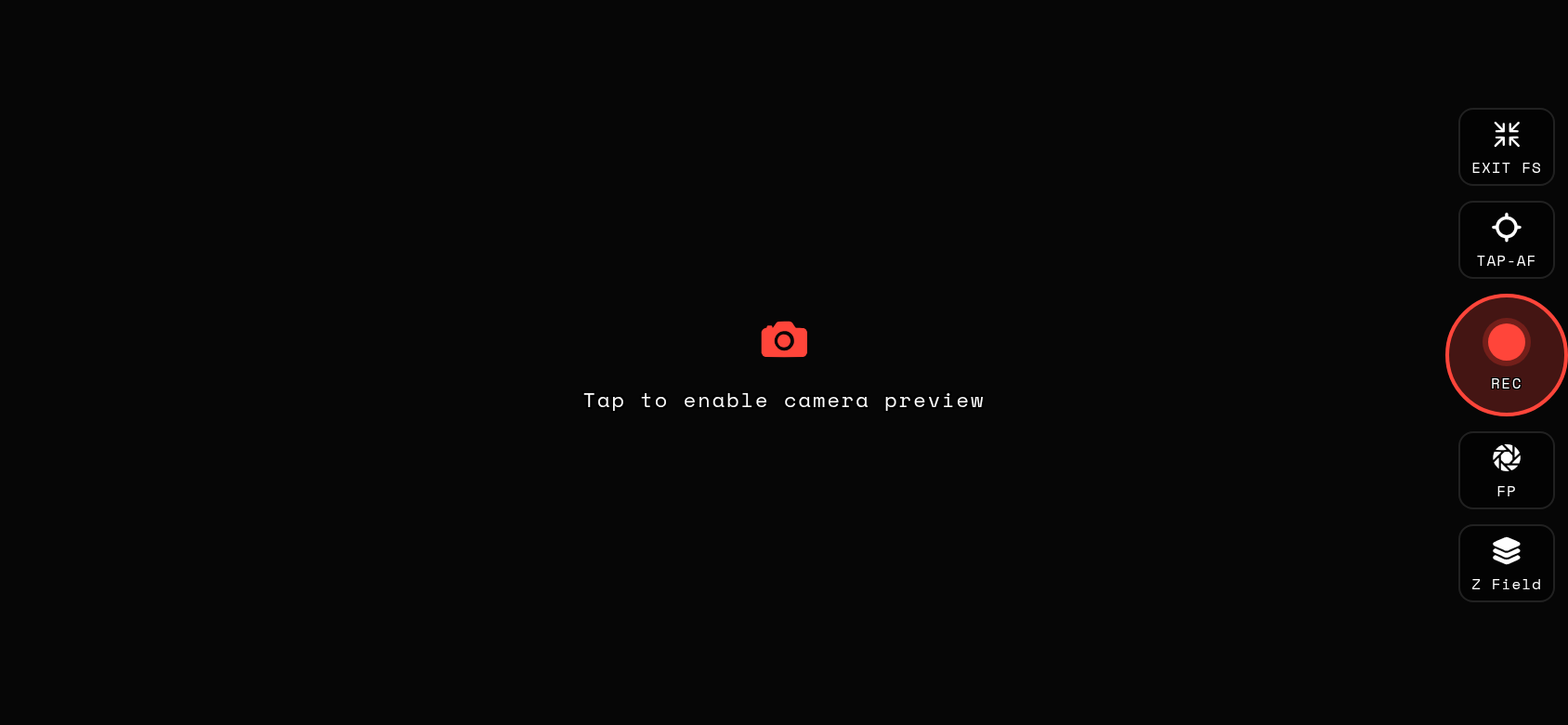
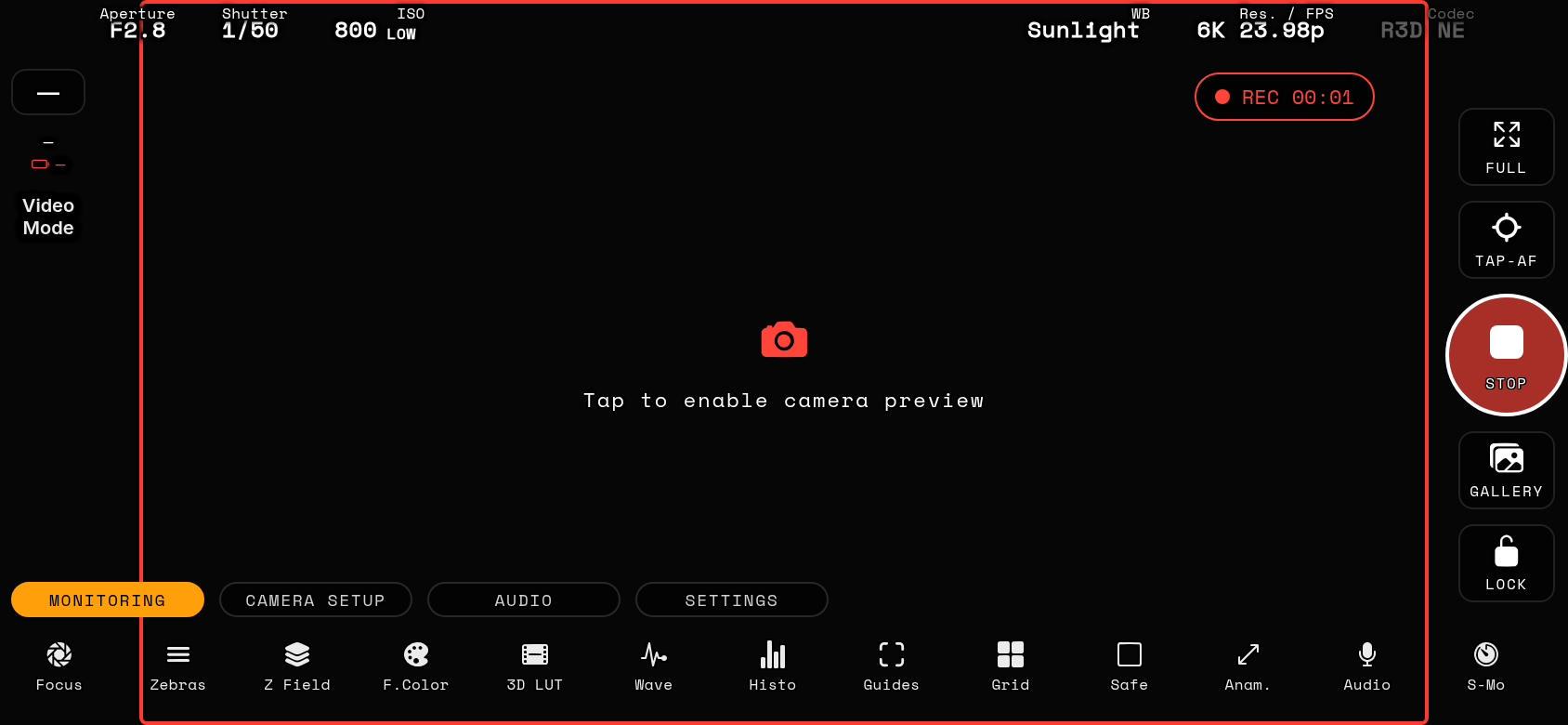
FULL
Fullscreen live view — hides both banners. Pinch with two fingers to zoom into the feed while fullscreen; triple-tap for display sleep; tap FULL again to exit.
Quick Buttons A / B (fullscreen)
Two small buttons that stay on screen in fullscreen so you keep your two most-used tools at hand. Assign them in Options → VIDEO or PHOTO tool table: tap the A or B badge next to a tool (tap again to clear). The assignments are independent per capture mode — video and photo each remember their own pair. Assignable: Z Field, False Color, 3D LUT, Radar Lights, Grid, Guides, Focus Peak, Zebras, Waveform, Histogram, Parade, Vectorscope, Audio Meter, Exposure Meter, Power Zoom, MF Dial, Non-CPU Lens and Focus Punch. Tap toggles the tool; the button lights when it is active. Special long-presses: Focus Peak cycles the peaking colour, Focus Punch opens the level sheet; Non-CPU Lens and Punch route to the same favourites / menus as their HUD buttons.
TAP-AF
Arms tap-to-focus so your next tap on the feed drives the AF point. While armed you can also slide your finger to pull the AF point continuously. Long-press to choose the Tap-AF behaviour.
REC
Start / stop recording on the camera. A red border (optional) frames the feed while recording.
SNAP (long-press REC)
Grab a still while filming without stopping: long-press REC and the app asks the body to capture a full-resolution photo to the card. If the body can't take a still in the current state, the app falls back to saving the current live-view frame to your phone's Photos instead.
GALLERY
Browse and play back clips and photos straight from the camera's cards. While viewing, swipe left/right (or use the on-screen arrows) to jump to the previous / next item. The video player includes an in-app LUT COMPARE: two selectable LUT chips (A / B) with swatch previews let you flip a grade on and off or compare two looks on the same clip. SAVE opens the save sheet: pick a DESQUEEZE factor (Off, 1.33×, 1.5×, 1.8×, 2× or your custom HUD factor — Off is always the default, nothing is baked unless you choose it) and, for videos, an optional LUT to bake in from any bundled or imported .cube. The LUT is applied to the clip's own code values exactly as the live view shows it and the result is written as a Rec.709 HEVC clip; desqueeze is baked into the pixels so every player (Photos, WhatsApp, web) shows the right width. JPG / HEIF stills can be desqueezed too; NEF raw is always saved untouched. The ANAMOR button cycles de-squeeze factors while viewing, and INFO opens the full metadata panel — codec, resolution, frame rate, size, date and more.
Gallery without the camera
The gallery also opens from the Connect page (picture icon in the header) with no camera attached. It shows the last known file list and every saved thumbnail; a banner tells you the camera is offline. Photos open instantly from their cached copy — or from the thumbnail if the full file was never fetched; cached clips play and save as usual, only clips that were never opened are dimmed 'Connect to play'. While connected, the gallery fetches EVERY thumbnail in the background (the item count shows 'fetching thumbnails (N left)'), so after one visit the whole card browses offline. Shooting data (shutter, aperture, ISO, lens) in the ⓘ panel needs the full JPG or the RAW to have been opened once — the thumbnail alone does not carry it.
RAW+JPG pairs
When a NEF and a JPG share the same name and were shot within two seconds, ALL TYPES and PHOTOS show them as ONE tile with a RAW+JPG badge (sizes combined). In the viewer a JPG / RAW toggle switches between the two — the RAW shows its embedded preview, downloaded once and cached like any photo. SAVE offers JPG only / RAW only / Both for the pair; in selection mode a pair counts as one item and is expanded on save. The dedicated NEF and JPG chips still list every file on its own. RAW clips work the same way: a RAW clip (N-RAW / R3D / ProRes RAW) and its MP4 / MOV proxy show as one tile with a RAW+proxy badge (the MP4 / MOV / RAW filters name only that format), play the proxy, and SAVE offers proxy only / RAW only / Both.
Picture info & histogram
Tap ⓘ in the picture viewer for file, dimensions, size, shutter, aperture, ISO, focal length, lens and capture time, followed by a 64-bin histogram drawn like the HUD scope — LUMA on top, R/G/B below — computed from the picture on screen (thumbnail while the full file is still loading). The panel scrolls, so in landscape swipe it up to reach the histogram. RAW pictures read their own EXIF; a paired JPG is used when the RAW's header is not cached. The clip player's ⓘ card adds shutter, aperture, ISO, lens, white balance and the real frame rate from Nikon's clip metadata. SHUTTER is the true exposure as recorded in the file — a fine-tuned 1/47.6 stays 1/47.6 — and for clips the equivalent angle (360° × time × fps) is shown next to it; the file does not record whether you dialled it as a speed, a fine-tune or an angle.
Day groups
When the list is sorted by DATE the grid is split into days — Today, Yesterday, then weekday + date — each separator showing how many files that day holds. Sorting by Type, Card or Size shows a plain grid.
Filter by date
The DATE chip (end of the type strip) opens a sheet with presets — Today, Yesterday, Last 7 / 30 days, This month — and FROM / TO date pickers for any interval (whole days, inclusive; picking them backwards is fine, they swap). The chip then shows the interval and the list keeps only files captured inside it; it combines with the card, type and Favourites filters. CLEAR removes it.
One gallery per body
Every camera you connect gets its own gallery, kept on the phone: index, thumbnails, cached files. When more than one body is known a chip row appears at the top (connected body marked with a dot; when nothing is connected the most recently seen body opens first). Tap another body to browse its gallery offline — cached items open, everything else is dimmed with 'Connect to open'. All bodies share ONE playback cache and one limit (Options → Storage → Playback cache shows the per-body share); FORGET next to a body removes its index, thumbnails and cached files from the phone — it comes back the next time that body connects.
RAW clips
N-RAW (.NEV) and R3D NE (.R3D) clips appear in the gallery like any other clip. A RAW clip with a proxy MP4/MOV collapses into ONE tile: the proxy plays, the orange RAW+MP4 badge opens the RAW actions. RAW clips cannot be decoded on a phone (no N-RAW / RED decoder exists for iOS or Android), so they are download/save-only; the RAW CLIPS filter lists them all. ProRes RAW (.MOV) plays on recent iPhones only — elsewhere the player says so and offers Save. The ✕ on the transfer bar aborts any download or background caching at once.
Instant playback while caching
Tapping a clip no longer waits for the whole file: the player starts within a second or two on the part that is already on the phone (the clip's index is fetched first) while the rest keeps streaming from the camera in the background — scrub anywhere and the download jumps there. If the camera link is slower than the clip's bitrate the player buffers first so playback never stutters; PLAY NOW ANYWAY skips the wait. Closing the player keeps caching (CACHING CLIP IN BACKGROUND bar); leaving the gallery pauses it and the next open resumes where it stopped. Once complete the clip is a normal cached entry.
Landscape layout
Turn the phone sideways and the gallery collapses its three filter rows into ONE scrollable strip (cards · types · sort), folds the offline note into the item count and shows four columns, so the grid keeps most of the screen.
Clean view
The eye button in the gallery header hides every tile caption (name, size, card, date, SAVE) so only the pictures remain. The choice is remembered.
Fullscreen with a LUT
Without a LUT the clip player uses the iOS fullscreen control. Once LUT A or B is active, the fullscreen button (top-right) hides all chrome — title, arrows, LUT chips, transport — leaving just the graded frame (or the A|B split). Tap the frame or the small corner icon to come back.
Select several items
LONG-PRESS any tile to enter selection mode, then tap tiles to add or remove them (checkmarks). The bar at the bottom offers ALL / NONE, FAV / UNFAV for the whole selection, CACHE to remove the selected clips' cached copies, SAVE and DONE. SAVE opens the same sheet as for a single item; when you choose a LUT or a desqueeze for several items, a REVIEW step lists every file with its LUT and factor pre-ticked so you can switch either off per item — photos never get a LUT, NEF gets neither — then one tap saves the whole plan (BACK returns to the LUT sheet, CANCEL abandons the save). Live View pauses once for the batch and the header counts SAVING 3 / 12; a summary lists anything that failed.
Gallery favourites
Tap the star on any clip or picture tile to mark it as a favourite. The FAVOURITES filter chip (with a count) shows only starred items — handy for pulling selects on set. Favourites are remembered across sessions and survive presets.
Clip cache
Clips you open are cached on the phone so they replay instantly — a download badge marks cached tiles and the header shows the total cache size. To drop individual cached copies, long-press to select the clips and tap CACHE in the selection bar. Options → Storage sets the cache LIMIT (GB); the oldest clips are dropped automatically when the limit is reached, and CLEAR PLAYBACK CACHE wipes everything at once. Nothing on the camera's cards is ever touched. If you DELETE a file on the camera that the phone has cached, the copy stays: the tile gets a blue PHONE ONLY badge and the ON PHONE filter chip lists just those files — they open and save exactly like before. Removing their cached copy (CACHE in the selection bar, or Options → Clear playback cache) removes them from the gallery for good.
LOCK
Locks the HUD against accidental taps: bottom tools and top chips grey out with a padlock and ignore taps silently (rail, REC and the feed stay live). Short-press to lock, LONG-press to unlock; switching the body to photo mode releases it.