
Connecting to your camera
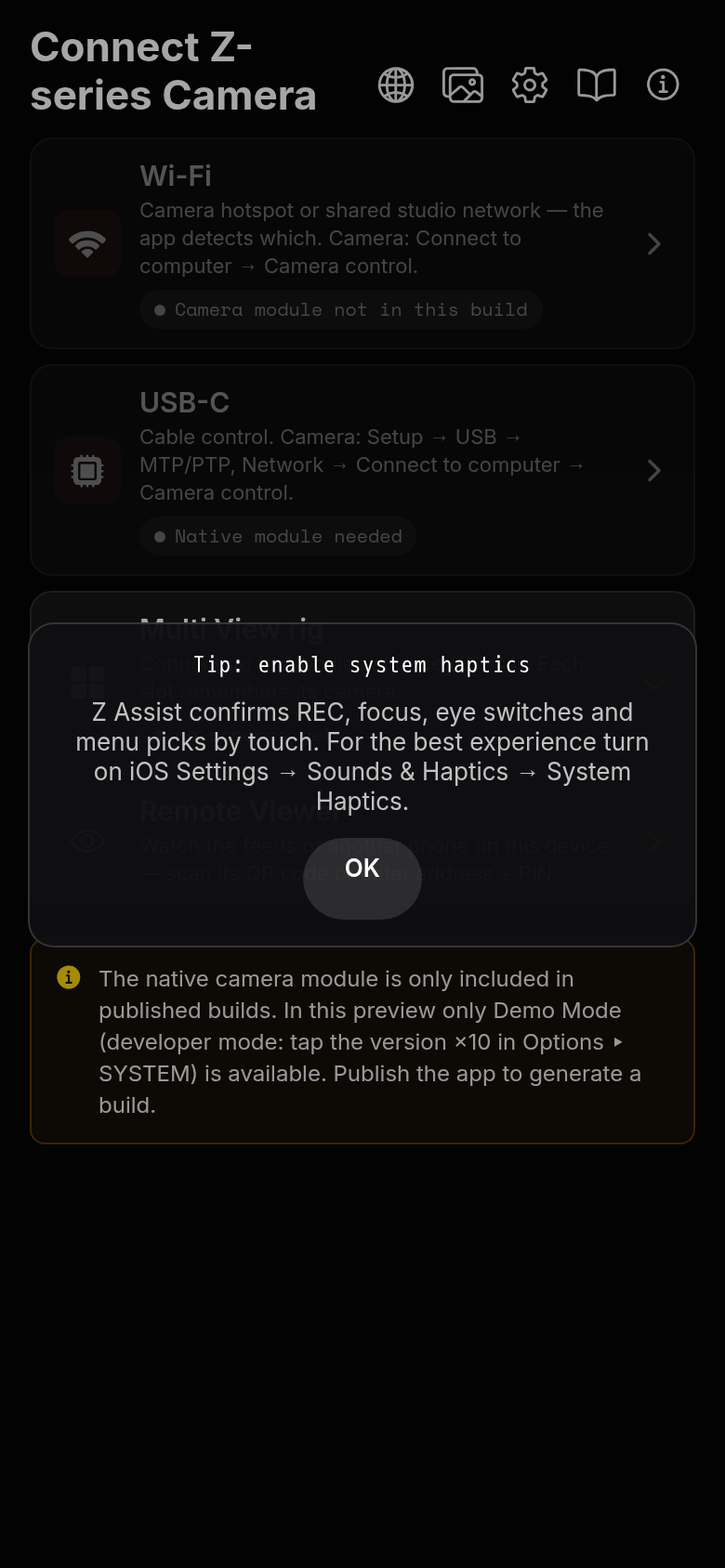
Wi-Fi
One button for both setups. On the camera: MENU → Network → Connect to computer → Connection type → Camera control; then Network settings → Create profile → Connection wizard. Hotspot: choose Direct connection to computer and join that Wi-Fi on the phone. Studio network: Search for Wi-Fi network, pick the phone's network, password, IP obtain automatically. The app detects which setup you are on and remembers it on the Reconnect card.
Several cameras found
When the scan finds more than one body, tapping CONNECT opens a chooser listing every camera by its name and model (e.g. ZR_6002084 · Nikon ZR). Pick one — only that body is paired; the others stay untouched and can be added later from Multi View. The chooser and the pairing-code dialog always appear on top of the page.
First-time pairing
On a body's first connection the camera shows a 4-digit code; the same code appears in the app. Tap ACCEPT if they match, then press OK on the camera when it says Pairing complete — the app reconnects by itself. REJECT (or closing the dialog) cancels cleanly. Bodies you have already paired connect straight away.
Reconnect cards — one per remembered body
Every body you have ever connected over Wi-Fi gets its own "Reconnect to <name>" card (most recent first, highlighted). The camera-side pairing is remembered per body, so a tap connects silently — no search, no pairing window: the app first knocks on the saved IP, then probes the usual hotspot addresses and runs a silent Bonjour pass, then connects. KILL cancels an attempt that hangs. Long-press a rig tile to forget a body; Options ▸ System ▸ Forget all remembered cameras clears the whole list.
USB-C
Most reliable path. On the camera: MENU → Setup → USB → MTP/PTP, and Network → Connect to computer → Connection type → Camera control. Plug the cable, tap CONNECT. First-gen bodies use USB-C too; the Z50 uses Micro-USB. Nothing else to set up.
Multi View rig (card below USB-C)
Collapsed by default — tap to open the four slots C1–C4. Each tile shows its remembered body (name, model, Wi-Fi / USB-C, last IP) and its state: CONNECTED (green), CONNECTING… / PAIRING… with a KILL button, REMEMBERED with CONNECT, FAILED with RETRY, or + Add camera (scan the network, the USB-C body, or a manual IP). A body returns to the same C-number next time. Tapping one tile connects that body and opens the Monitor with Multi View already ON — even with a single camera. CONNECT ALL connects every remembered body: bodies the app already holds a pairing for connect silently in parallel (≈2–4 s each); first-time bodies pair one at a time — the camera shows one OK prompt per body — and a refused or timed-out body is marked FAILED while the others continue. OPEN MONITOR hands the connected slots to the Monitor. Note: a camera hotspot (Wi-Fi Direct) can carry only ONE body — for two or more, put the bodies in Access Point mode on a shared network, or connect one over USB-C and the others over Wi-Fi.
Remote Viewer (in the rig card)
Watch another phone's camera feeds on this device: scan the host's QR code or type its address and PIN. View only, all monitoring tools local — see the Remote Viewer section below.
VPN active (Tailscale, WireGuard…)
A VPN tunnel can swallow local connections. The app pins its sockets to the Wi-Fi or hotspot interface, but if pairing never appears or every connect times out while a VPN is on, disable the VPN for the session — the connect error names it when it detects one.
Feed smoothness (Options → Network)
Five controls shape the wireless feed: Live View resolution (camera-side image size — smaller sizes transmit faster and raise the achievable frame rate), Live View quality (camera-side JPEG compression), Adaptive quality (OFF by default — turn it on for shaky or saturated wireless links: the app temporarily steps compression first, then size, and restores both automatically), Sensor-paced polling (OFF by default — times each request to the camera's frame cadence so no airtime goes to duplicate frames; useful with Multi View and on battery) and Preview sharpening (phone-side sharpening of the preview only). First-install defaults: VGA · Normal – Size priority, Adaptive quality OFF, Sensor-paced polling OFF, Feed smoothing OFF. Resolution and quality are remembered PER CAMERA: the setting edits the camera that is live; a body connected for the first time starts at the defaults, never at another body's choice. In Multi View, to change a background window's camera make it live first (double-tap its window), then change the setting.
Wireless performance tips: the frame rate over Wi-Fi is bound by the link's round-trip time — Access Point mode on a good router is usually the fastest wireless path, USB-C is immune to radio conditions entirely. Momentary fps dips normally mean the radio link itself (distance, interference, a busy channel) — Adaptive quality (an opt-in) is designed to absorb exactly those. Switching the camera's own Wi-Fi to the 5 GHz band (camera network menu) usually doubles throughput on direct connections. A nearly empty camera battery can also slow the body's own frame delivery.